







In this article, we’ll cover the key differences and details you need, so you and your customers know what to expect.
Where do I start?
How you process a refund depends on how the sale happened. It might be through a payment terminal, online checkout, payment link, or a virtual terminal by phone.
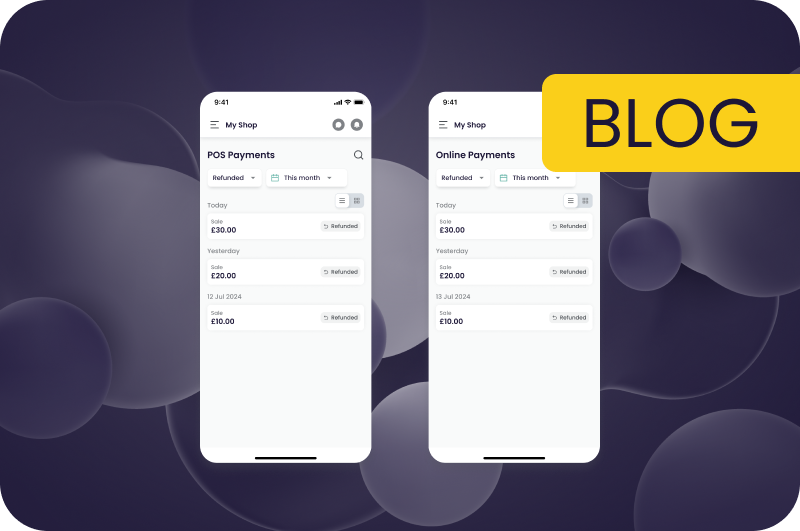
If you’re not sure, the easiest way to check the payment type is through your Merchant Portal. Payments from a terminal are listed in the POS Payments section, and online payments are in the Online Payments section. More details are below.
- POS payment: taken on a card machine or terminal.
- Online payment: taken through a website integration, Payment by Link, or Virtual Terminal.
After you know the payment type, starting the refund is simple. For POS payments, this can be done either on your payment terminal or through the Merchant Portal.
In-person option 1: Process a refund directly on your payment terminal
You can process a refund on the terminal using your Supervisor login.
To do this:
1. Log in to the terminal using your Supervisor credentials
2. Select Refund via the Payment Options button on your main terminal screen
3. Select Done then enter the Refund Amount
4. Your terminal will prompt you to insert the customer’s card, and will then begin the refund process
5. You’ll get an ‘Approved’ confirmation on your terminal once completed and will be prompted to print a Customer Receipt
You can view the steps on our axept PRO user guide here
Where can you find your Supervisor login details?
Your Supervisor login details were sent to your main admin email after onboarding. If you can’t find them, check the original email with your terminal login details. That’s the best place to start.
In-person option 2: Process a refund in your Merchant Portal or mobile app
You can also process eligible POS refunds in the Merchant Portal and app.
This lets you manage refunds more flexibly, without needing to return to the terminal.
To process a refund in the Merchant Portal or app:
- Find the transaction under POS Payments
- Click the three dots on the right
- Select Refund
Refund an online payment
If the original payment was made through a website integration, Payment by Link, or Virtual Terminal, you can process the refund in the Online Payments section of your Merchant Portal.
Just like in-person, the process for online payments is simple:
1. Find the transaction under Online Payments
2. Click the three dots on the right
3. Select Refund
If you can’t access the refund option, your user permissions might need to be updated. Our Support team can guide you and activate your permissions if needed.
Once that’s sorted, processing refunds is straightforward, and you’ll be handling them with confidence in no time.
Who on my team can manage refund access?
Your Admin user manages refund access. They can log in to the Merchant Portal and grant permission to other team members in the Team Management section. The process is simple, and our online guide at {link} explains each step.
Admin users can easily manage team access for Online Payments refunds. For POS Payments, our Support team will help set up refund access, as this process sometimes requires additional technical steps. If you don’t see the refund option, you may need to contact our team to enable access for you.
Why refund options can sometimes be confusing
Most refund issues usually happen for one of these reasons:
- The original payment type was not identified first
- The refund is being attempted in the wrong place
- The required permission is missing
- Your terminal requires Supervisor login details that were sent to the main admin email after onboarding
Once you know whether the payment was made in-store or online, finding the right refund process is much easier.
If you need any further guidance, please check out our Product Guides here, or reach out to our Support Team here